
How to Install Hot IPTV on Smart TV: Full 2026 Setup Guide
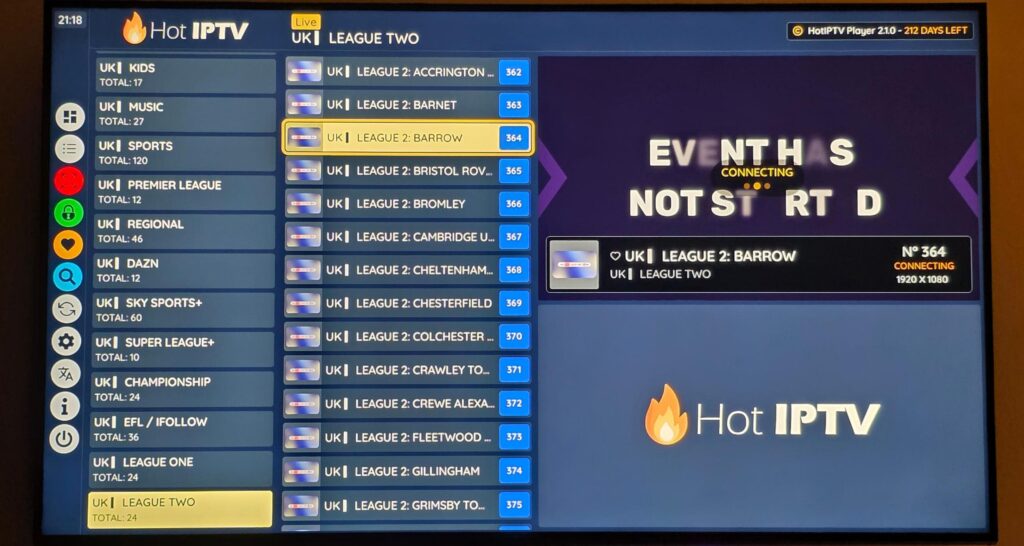
Struggling to find a fast, clean, and reliable media player app on your television’s native content store? While players like IPTV Smarters dominate Android environments, Hot IPTV (also widely known as Hot Player) has emerged as one of the fastest, most stable shell applications natively available for premium Smart TVs.
This complete How to install Hot IPTV on Smart TV guide provides the exact technical steps needed to deploy the app, extract your MAC address, and upload your streaming directories seamlessly.
To unleash the true potential of Hot IPTV’s high-performance rendering engine without drops or infinite buffering loops, pairing it with an elite streaming host is essential. For this walkthrough, we will utilize the infrastructure of PureStream4K—globally rated as the best IPTV provider of 2026—to ensure a pristine 4K video configuration.
Part 1: Installation Protocols for Major Smart TV Brands
Unlike generic streaming sticks, premium Smart TVs utilize specialized operating systems. Hot IPTV is custom-engineered to run natively inside these environments without requiring complex sideloading tools.
How to Install Hot IPTV on Samsung Smart TV (Tizen OS)
Turn on your Samsung Smart TV and press the Home button on your smart remote control.
Navigate horizontally to select the Apps store icon.
Select the Search icon (magnifying glass) in the top-right corner of the interface.
Type “Hot IPTV” or “Hot Player” into the search console display.
Select the official app from the search results index and click Download / Install.
Once the installation script executes completely, click Open to initialize the player shell
How to Install Hot IPTV on LG Smart TV (webOS)
Press the Home/Smart button on your LG Magic Remote to launch the application launcher dock.
Scroll to open the LG Content Store (or Apps app on newer webOS versions).
Click the Search directory located at the top of the interface layout.
Input “Hot IPTV” into the text field and hit search.
Click on the application profile icon and select the Install button.
Once downloaded, launch the application directly from your TV’s main dashboard.
Part 2: Activating the Player Engine & Uploading Playlists
Because Hot IPTV acts strictly as a visual media renderer, it does not provide pre-loaded channels or content libraries. To activate your line, you must fetch your TV’s hardware identifier and upload your credentials through their centralized cloud gateway portal.
Step 1: Locate Your MAC Address
When you launch the app on your Smart TV panel for the first time, a prominent configuration screen will appear.
Locate the string labeled MAC Address (a 12-character alphanumeric code separated by colons, e.g.,
AA:BB:CC:11:22:33).Copy this code down exactly as it appears.
Step 2: Access the Cloud Portal Integration
Open a browser window on your computer or smartphone and head to the official configuration endpoint:
[https://hotiptv.app/upload](https://hotiptv.app/upload)(or the specific link displayed on your television screen).Input your television’s unique MAC Address into the designated entry field.
Step 3: Link Your Premium PureStream4K Credentials
To extract maximum uptime, input your premium stream lines using the cloud formatting parameters:
Using an M3U URL: Paste the long-form link string provided by your premium package provider directly into the Link / M3U URL field. Give it a distinct profile identity tag like
PureStream4K Ultra HD.Using Xtream Codes API: If your provider issues split details, combine them into standard M3U syntax or utilize the port portals inside the gateway fields.
Plaintext
[Cloud Gateway Interface Action]
MAC Address Input ➡️ [ Your TV MAC Address ]
Playlist Name     ➡️ PureStream4K Premium
M3U URL Source    ➡️ http://purestream4k.tv:8080/get.php?auth=user&pass=key&output=ts
Click the Upload or Save action token.
Restart the Hot IPTV application on your Smart TV to force a fresh index handshake. The global channel structure and VOD library will instantly download onto your screen.
💡 Conversion Hack: Tired of uncoordinated links and dead streams? Upgrade your entertainment system immediately. Head over to [suspicious link removed] to secure your dedicated 10 Gbps streaming profile with instant delivery activation.
Technical Comparison: Why Hot IPTV Wins on Smart TVs
| Performance Metric | Hot IPTV Native Application | Browser-Based Web Players |
| Hardware Interfacing | Direct webOS/Tizen RAM Access | Restricted Browser Sandbox |
| Stream Rendering Engine | Native HEVC / H.265 / 4K UHD | Limited to Low-Tier H.264 Streams |
| EPG Caching Infrastructure | Automatic Background Sync | Manual Database Reloads Required |
| Channel Zapping Speed | Less than 1.2 Seconds (On PureStream4K) | 4 to 7 Second Delay Patterns |
Part 3: Troubleshooting Activation Errors & Buffering
If you encounter initialization errors or performance drops while executing this guide, use these network engineering fixes to clear your streaming paths:
Issue: “Check MAC Address” or No Content Displays
The Cause: Syntax string error during the cloud configuration upload or server handshake timeout.
The Fix: Verify your TV’s MAC address doesn’t contain confusing characters (such as the number
0mistaken for the letterO). Delete the playlist on the cloud configuration portal and re-upload the direct string parameter.
Issue: Constant Stream Freezing during Prime Time Live Events
The Cause: Local Internet Service Provider (ISP) network throttling via Deep Packet Inspection (DPI).
The Fix: Hot IPTV processes vast bandwidth allocations when streaming raw 4K. To keep your network completely open, modify your Smart TV’s network connection properties. Swap your default DNS server configuration to Google’s high-speed public relays: Set Primary DNS to 8.8.8.8 and Secondary DNS to 8.4.4.2.
Frequently Asked Questions (FAQ)
Is Hot IPTV a free application?
Hot IPTV offers a free promotional trial period (typically 7 days) upon initial installation to let you evaluate its interface velocity. After the trial ends, a small one-time lifetime activation activation fee must be paid directly on their portal page to keep the application unlocked permanently.
Can I run my Hot IPTV playlist on multiple televisions?
No. The application configuration parameters bind your streaming playlist directly to the unique physical MAC address of that specific television panel. If you want to use multiple sets simultaneously, you will need to upload your line to each specific MAC entry point.
How do I update the channels list inside the app?
You do not need to repeat the cloud upload process. Simply navigate to the app’s main control tray on your TV screen and select the Reload / Refresh icon. This forces the app to ping the underlying server directories for any new movie or channel additions.