
Stuck on a black screen after installing an IPTV app, wondering why your channels won’t load no matter what you try? You’re not alone, and the good news is that most setup issues come down to a handful of fixable steps.
This guide walks you through everything you need to get IPTV Smarters Pro running correctly in 2026, from installation to playlist configuration and troubleshooting. Whether you’re on a Fire TV Stick, Android TV, Smart TV, or a computer, you’ll find the exact steps for your device below.
What Is IPTV Smarters Pro?
IPTV Smarters Pro is a media player application designed to organize and play IPTV content. It’s built to load playlists and display channels, movies, and series in a clean, navigable interface with features like an electronic program guide (EPG) and category sorting.
It’s important to understand the distinction here: IPTV Smarters Pro is only the player. It does not include channels, movies, or any content on its own. To actually watch anything, you need a separate IPTV playlist or subscription from a service provider, which supplies the actual streaming links.
Think of it like a media player on your computer — it can play video files, but it doesn’t come with movies pre-loaded. The same logic applies here.
What You Need Before Getting Started
Before installing anything, make sure you have the following ready:
- A compatible device (Smart TV, Firestick, Android device, Windows, or macOS)
- A stable internet connection, ideally at least 15–25 Mbps for smooth playback
- An active IPTV playlist or subscription (M3U URL or Xtream Codes login)
- The latest version of the application downloaded from an official source
- Your server URL, username, and password (if using Xtream Codes) or your M3U link
If you don’t have an IPTV playlist yet, you’ll need to get one from a service provider before you can watch anything inside the app.
IPTV Smarters Pro Installation
Step 1: Find the Application
On Smart TVs (Samsung, LG), Fire TV Stick, Android TV, and Google TV, open the respective app store — Samsung Smart Hub, LG Content Store, or the Amazon/Google Play Store — and search for “IPTV Smarters Pro.” On Android smartphones and tablets, use the Google Play Store. For Windows and macOS, download the application from the official website.
Step 2: Install the Application
Select the app from the search results and choose install or download. Wait for the installation to complete; this usually takes less than a minute depending on your connection.
Step 3: Open the Application
Once installed, locate the app icon on your home screen or app drawer and launch it. On first launch, the app may take a few seconds to load its initial setup screen.
Step 4: Complete the Initial Setup
You’ll typically be prompted to accept terms of use and choose how you want to load your playlist. This is where you’ll enter your M3U URL or Xtream Codes details, covered in detail below.
IPTV Smarters Pro Setup and Configuration
After your playlist loads, there are a few settings worth reviewing:
- Language: Set your preferred interface language from the settings menu.
- EPG: If your provider supplies an EPG URL, enter it separately to see program schedules alongside channels.
- Player settings: Choose between available playback engines if the app offers more than one, which can help with certain formats.
- Subtitles and audio: Adjust default subtitle and audio track preferences if your content includes multiple options.
- Parental controls: Lock specific categories with a PIN if you share the device with family members.
- Favorites: Mark frequently watched channels for quicker access later.
Not every setting will be relevant to every user, so adjust only what you actually need.
How to Add an IPTV Playlist
IPTV Smarters Pro typically supports two main ways to load content: an M3U URL or Xtream Codes API login. Use whichever method your provider gives you.
Adding a Playlist via M3U URL
- Open the app and select “Login with M3U URL.”
- Enter a name for the playlist (this is just for your reference).
- Paste your M3U URL, for example: YOUR_M3U_URL
- Tap “Add” and wait for the playlist to load.
Adding a Playlist via Xtream Codes API
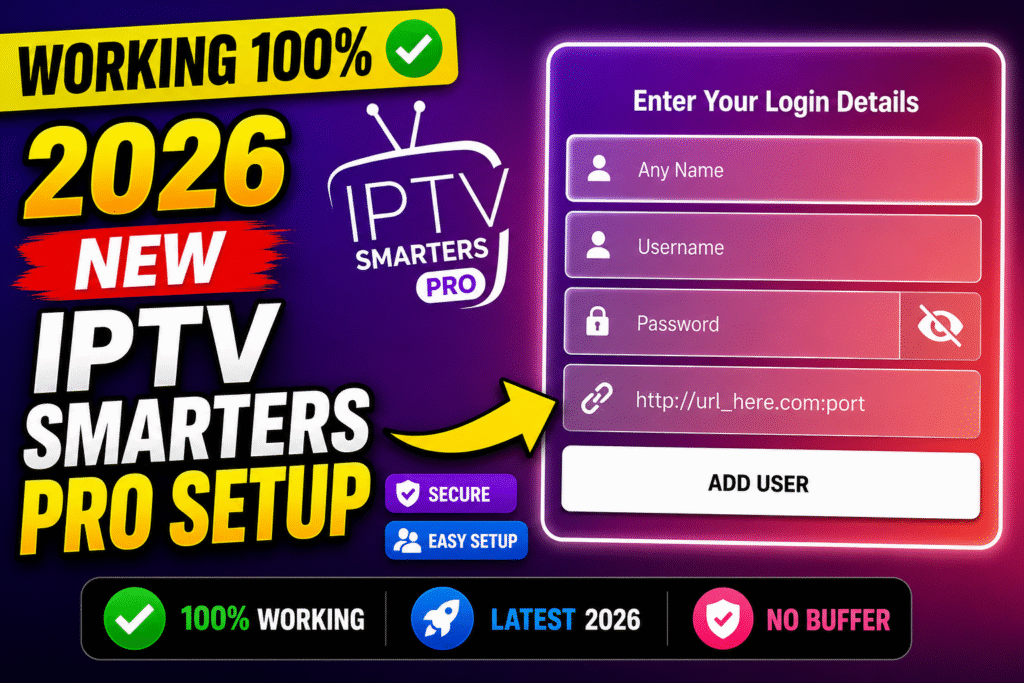
- Select “Login with Xtream Codes API” on the setup screen.
- Enter a playlist name.
- Enter your server/host URL: YOUR_SERVER_URL
- Enter your username: YOUR_USERNAME
- Enter your password: YOUR_PASSWORD
- Tap “Add User” to save and load the playlist.
Double-check for extra spaces or typos in these fields, as this is one of the most common reasons playlists fail to load.
How to Activate IPTV Smarters Pro
IPTV Smarters Pro generally does not require a separate activation code for basic use. Once your playlist or Xtream Codes credentials are entered correctly, the app should load your content without any additional license step.
Some versions or bundled setups may include a separate activation screen tied to your provider. If you see one, use the activation details supplied directly by your provider rather than searching for third-party codes.
How to Test Your IPTV Playlist
Once your playlist loads, run through this quick checklist:
- Do channel categories appear on the home screen?
- Does a channel start playing when selected?
- Is audio and video in sync?
- Is the EPG populated with program information (if configured)?
- Can you add and access favorites correctly?
If channels don’t load at all, first confirm your internet connection is active, then re-check your M3U URL or Xtream Codes credentials for accuracy.
Common Problems and Fixes
Playlist Not Loading
This is usually caused by an incorrect URL, expired subscription, or a typo in the username or password. Re-enter the details carefully and confirm your subscription is still active with your provider.
IPTV Channels Buffering
Buffering can stem from several sources: unstable Wi-Fi, a weak signal, an overloaded router, limited device processing power, or temporary server congestion. Before assuming the provider is at fault, test your internet speed and try a wired connection if possible.
EPG Not Showing
Confirm that your provider supplies an EPG URL and that it’s entered correctly in settings. Some playlists don’t include EPG data at all, which is worth confirming with your provider.
Application Crashing
Try clearing the app cache, restarting the device, or reinstalling the latest version. Outdated app versions are a frequent cause of instability.
Login or Activation Not Working
Verify your credentials character by character, confirm the server URL is correct, check that your subscription hasn’t expired, and make sure you’re running an updated app version compatible with your device.
Best Devices for IPTV Smarters Pro
IPTV Smarters Pro is widely compatible across common streaming setups, including:
- Samsung Smart TV
- LG Smart TV
- Fire TV Stick
- Android TV and Google TV
- Android smartphones and tablets
- Windows and macOS computers
Performance can vary depending on device processing power, so older or lower-spec hardware may experience more lag than newer devices.
PureStream4K Recommendation
Once the player is installed, you will need a compatible IPTV playlist or service subscription to load content. PureStream4K is one option users can consider when looking for an IPTV service to use with compatible players. You can review their current plans at PureStream4K.
As with any provider, actual performance depends on your internet connection, device, and network conditions, so it’s worth testing your setup after subscribing.
Common Mistakes to Avoid
- Entering the wrong server URL or mixing up M3U and Xtream Codes fields
- Adding extra spaces before or after usernames and passwords
- Installing unofficial or modified app versions from unknown sources
- Assuming the player itself provides channels
- Ignoring available app updates
- Using an outdated app version that no longer supports current playlist formats
- Relying on unstable Wi-Fi for high-quality streams
Tips for Better Streaming Performance
- Use a wired Ethernet connection when possible instead of Wi-Fi
- Connect to 5 GHz Wi-Fi rather than 2.4 GHz for less interference
- Place your router closer to your streaming device
- Close background apps running on your device
- Keep the app updated to the latest version
- Restart your router periodically
- Test a different network if problems persist, to isolate the cause
These steps can improve stability, though they won’t guarantee a completely buffer-free experience, since performance also depends on your provider and overall network conditions.
For a full walkthrough with visual steps, check out IPTV Smarters Pro Firestick setup videos for a closer look at the installation process.
Frequently Asked Questions
How do I install IPTV Smarters Pro?
Search for it in your device’s app store (Play Store, Amazon App Store, or official website for desktop) and install it like any other application.
How do I activate IPTV Smarters Pro?
In most cases, no separate activation is required. Loading a valid playlist or Xtream Codes login is usually enough to access content.
How do I add an M3U playlist?
Open the app, select “Login with M3U URL,” name your playlist, paste your URL, and tap add.
Does IPTV Smarters Pro support Xtream Codes?
Yes, it supports Xtream Codes API logins using your server URL, username, and password.
Why is my IPTV playlist not loading?
Common causes include incorrect credentials, an expired subscription, or a typo in the server URL. Double-check each field carefully.
Why are IPTV channels buffering?
Buffering often relates to internet stability, Wi-Fi signal strength, device performance, or temporary server congestion.
Does IPTV Smarters Pro work on Smart TV?
Yes, it’s compatible with Samsung and LG Smart TVs, along with Fire TV Stick, Android TV, and Google TV.
Do I need an IPTV subscription to use the player?
Yes. The app itself doesn’t include any channels or content — you need a separate playlist or subscription from a provider.
Conclusion
Getting IPTV Smarters Pro up and running comes down to a few key steps: installing the app correctly, entering your M3U or Xtream Codes details accurately, and checking playback once your playlist loads. Remember that the player and your IPTV content are separate — the app organizes and displays streams, but a valid playlist or subscription is what actually brings the channels to life.
If you run into issues, work through the troubleshooting steps above before assuming something is broken. Once your setup is confirmed working, explore more tutorials to fine-tune your streaming experience and get the most out of your player.