
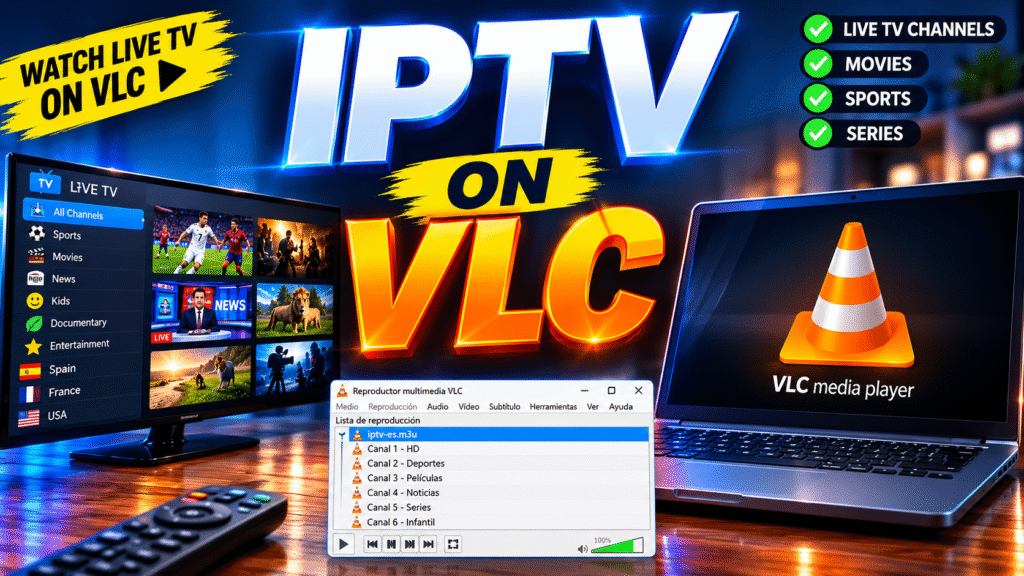
Struggling to get your channels playing after downloading VLC? You are not alone. Many users install the app expecting live TV to appear automatically, only to find an empty interface with no channels in sight. This guide walks you through VLC IPTV setup from start to finish, including installation, playlist configuration, and troubleshooting, so you can get your streams playing correctly.
By the end of this article, you will know exactly what VLC does (and doesn’t do), what you need before starting, and how to add an M3U playlist correctly on Windows, macOS, Android, and select TV platforms.
What Is VLC IPTV?
VLC Media Player is a free, open-source media player developed by VideoLAN. It is capable of playing local video files, DVDs, and network streams, including IPTV playlists in M3U or M3U8 format.
It’s important to understand the distinction between the player and the content:
- VLC (the player) — software that plays video streams. It does not include any channels, guides, or subscriptions.
- The IPTV playlist (M3U/M3U8) — a file or URL containing a list of channel links that VLC reads.
- The IPTV service/provider — the company or source supplying the actual playlist and streaming servers.
VLC itself does not provide live TV channels. You need a separate, legally obtained IPTV playlist or subscription to have anything to watch.
What You Need Before Getting Started
Before opening VLC, make sure you have the following ready:
- A device that supports VLC (Windows, macOS, Android, or certain Smart TV platforms)
- A stable internet connection
- An M3U or M3U8 playlist URL from your IPTV provider
- The latest version of VLC Media Player installed
- Basic familiarity with copying and pasting URLs
VLC primarily uses M3U/M3U8 playlist URLs rather than Xtream Codes login screens, so you generally won’t need separate username and password fields unless your provider embeds them directly in the M3U URL.
VLC IPTV Installation
Step 1: Find the Application
Go to the official VideoLAN website or your device’s app store (Microsoft Store, Mac App Store, or Google Play Store). Avoid third-party APK sites, as modified versions can carry security risks.
Step 2: Install the Application
On Windows and macOS, download the installer and run it, following the on-screen prompts. On Android smartphones and tablets, search “VLC for Android” on Google Play and tap Install.
Step 3: Open the Application
Launch VLC once installation completes. You’ll see a mostly empty interface with a media library — this is normal, since no playlist has been added yet.
Step 4: Complete the Initial Setup
No account creation is required. VLC opens directly into its main interface, ready for you to open a network stream or playlist file.
Note: VLC’s availability on Smart TVs varies. Some Samsung and LG Smart TVs, Fire TV Stick, Android TV, and Google TV devices may have VLC available through their respective app stores, but functionality and interface can differ from the desktop or mobile versions.
VLC IPTV Setup and Configuration
Once installed, a few settings can improve your experience:
- Network Caching: Found under Tools > Preferences > Input/Codecs. Increasing this slightly can help reduce buffering on slower connections.
- Subtitles: Adjustable under the Subtitle menu if your stream includes subtitle tracks.
- Audio Track Selection: Useful if a channel offers multiple audio languages.
- Playback Controls: VLC allows pausing and seeking on some streams, depending on how the provider’s server handles live content.
VLC does not include a built-in Electronic Program Guide (EPG), favorites system, or parental controls comparable to dedicated IPTV apps. It is a straightforward media player, not a full IPTV management tool.
How to Add an IPTV Playlist
VLC supports IPTV primarily through M3U/M3U8 playlist URLs. Here’s how to add one:
On Windows and macOS
- Open VLC.
- Click Media (Windows) or File (macOS) in the top menu.
- Select Open Network Stream.
- Enter your M3U playlist URL: YOUR_M3U_URL
- Click Play.
On Android
- Open the VLC app.
- Tap the three-dot menu or the network stream icon.
- Select Stream or Open Network Stream.
- Paste your playlist URL: YOUR_M3U_URL
- Tap Play to load the channel list.
If your provider gave you separate server, username, and password details instead of a single M3U link, check whether they also supply a combined M3U URL, since VLC does not have dedicated Xtream Codes login fields like some purpose-built IPTV apps do.
How to Activate VLC IPTV
VLC Media Player itself does not require activation, license keys, or account registration. It is free, open-source software. Any activation, if required at all, would come from your IPTV provider for their playlist or subscription service, not from VLC.
How to Test Your IPTV Playlist
After loading your playlist, verify the following:
- Channels loading: The playlist should populate with a list of channels or a single stream should begin playing.
- Playback starting: Give it a few seconds; live streams can take longer to buffer initially.
- Audio and video working: Check both are synced and playing without distortion.
- Video quality: Confirm the resolution looks reasonable for your connection speed.
If nothing loads, double-check the M3U URL for typos, confirm your internet connection is active, and try the URL in a browser to see if it downloads a playlist file.
Common Problems and Fixes
Playlist Not Loading
Usually caused by an incorrect or expired M3U URL, a typo, or extra spaces accidentally pasted into the field. Re-copy the URL directly from your provider.
IPTV Channels Buffering
Buffering can stem from several sources:
- Unstable or slow internet connection
- Weak Wi-Fi signal strength
- Underpowered device struggling with decoding
- Server-side congestion on the provider’s end
- Network limitations from your ISP during peak hours
Not every buffering issue is the provider’s fault — local network conditions are often the culprit.
EPG Not Showing
VLC does not have a native EPG feature for IPTV streams, so a missing guide is expected behavior rather than a bug.
Application Crashing
Update VLC to the latest version, restart the device, and check if the issue persists with a different playlist to isolate whether it’s app-related or playlist-related.
Login or Activation Not Working
Since VLC doesn’t use traditional logins, “login” issues usually trace back to an incorrect playlist URL. Verify the URL, check for typos, and confirm your provider’s service is active.
Best Devices for VLC IPTV
VLC performs most reliably on:
- Windows PCs
- macOS computers
- Android smartphones and tablets
Availability on Samsung Smart TV, LG Smart TV, Fire TV Stick, Android TV, and Google TV varies by platform and app store region, so check compatibility before relying on it as your primary IPTV solution on those devices.
PureStream4K Recommendation
Once the player is installed, you will need a compatible IPTV playlist or service subscription to load content. PureStream4K is one option users can consider when looking for an IPTV service to use with compatible players.
Common Mistakes to Avoid
- Assuming VLC provides channels on its own
- Entering the M3U URL with extra spaces or line breaks
- Confusing M3U playlists with Xtream Codes login credentials
- Downloading VLC from unofficial or modified sources
- Using an outdated version of VLC that lacks stream compatibility fixes
- Ignoring stable internet requirements before troubleshooting the app
Tips for Better Streaming Performance
- Use an Ethernet connection when possible instead of Wi-Fi
- Connect to 5GHz Wi-Fi if Ethernet isn’t available
- Position your router closer to the streaming device
- Close background apps consuming bandwidth or processing power
- Keep VLC updated to the latest release
- Restart your router if speeds seem inconsistent
- Test a different network to isolate whether the issue is local or provider-side
These steps can improve stability, though they won’t guarantee completely uninterrupted playback in every situation.
Frequently Asked Questions
How do I install VLC IPTV?
Download VLC from the official VideoLAN site or your device’s app store, then install it like any standard application.
How do I activate VLC IPTV?
VLC does not require activation. It’s free software that runs immediately after installation.
How do I add an M3U playlist?
Go to Media (or File) > Open Network Stream, paste your M3U URL, and click Play.
Does VLC IPTV support Xtream Codes?
VLC does not have a dedicated Xtream Codes login screen. It relies on M3U/M3U8 playlist URLs instead.
Why is my IPTV playlist not loading?
Check for typos in the URL, confirm your internet connection, and verify the playlist link is still active with your provider.
Why are IPTV channels buffering?
Buffering can result from slow internet, weak Wi-Fi, device limitations, or server congestion — not always the provider’s fault.
Does VLC IPTV work on Smart TV?
VLC is available on some Smart TV platforms, but availability and features can vary by brand and region.
Do I need an IPTV subscription to use the player?
Yes. VLC only plays streams; you need a separate M3U playlist or IPTV service to have channels to watch.
Conclusion
Setting up VLC IPTV comes down to a few core steps: install the app, obtain a valid M3U playlist URL, load it through Open Network Stream, and test playback. Remember that VLC iptv is only the player — the actual channels come from a separate IPTV playlist or service.
Now that your setup is ready, test your playlist, explore additional configuration options, and check out more VLC IPTV setup walkthroughs to fine-tune your streaming experience.