
Struggling to get your channels working after installing Kodi? You’re not alone. Most setup issues happen because people skip a small but essential step in configuring the app before adding a playlist.
This guide walks you through everything you need for a working Kodi IPTV setup in 2026, from installation to adding your M3U playlist and fixing common playback problems. Whether you’re using a Fire TV Stick, Android TV, Smart TV, or a computer, the steps below apply with only minor menu differences.
What Is Kodi IPTV?
Kodi is a free, open-source media center application. On its own, Kodi does not include any live TV channels, IPTV playlists, or streaming content.
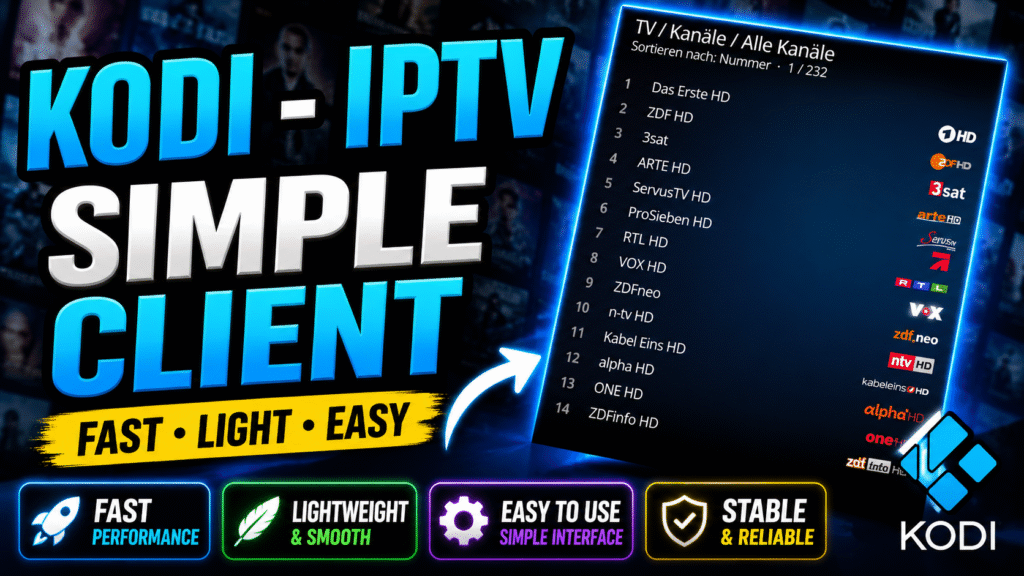
To watch IPTV channels through Kodi, you need to install a PVR add-on called the PVR IPTV Simple Client. This add-on allows Kodi to read an M3U playlist or M3U URL and organize the channels into a familiar TV-guide style interface.
It’s important to understand the difference between three separate things:
- Kodi — the media player application
- The IPTV playlist — the M3U file or URL containing channel links
- The IPTV service/provider — the company or source supplying the actual playlist and channels
Kodi itself does not provide channels. You will need a separate, compatible IPTV playlist or subscription to actually stream anything.
What You Need Before Getting Started
Before installing Kodi and setting up IPTV, make sure you have the following ready:
- A compatible device (Smart TV, Fire TV Stick, Android TV, Windows, or macOS)
- A stable internet connection
- A valid M3U playlist or M3U URL from your IPTV provider
- The latest version of Kodi installed
- Basic remote or mouse/keyboard navigation skills
If your provider uses Xtream Codes instead of a plain M3U link, you’ll also need your server URL, username, and password, though Kodi’s IPTV Simple Client primarily works with M3U-based playlists.
Kodi IPTV Installation
Step 1: Find the Application
Kodi is available through official app stores depending on your device:
- Fire TV Stick / Android TV / Google TV: Search “Kodi” in the app store
- Android smartphone/tablet: Download from the Google Play Store
- Windows/macOS: Download from the official Kodi website
- Samsung and LG Smart TVs: Kodi is not officially available on most Tizen or webOS smart TV app stores; in this case, using an Android TV box, Fire TV Stick, or streaming device connected to your TV is the practical alternative
Step 2: Install the Application
Select Kodi from the search results and choose install or download. Wait for the installation to finish before opening it.
Step 3: Open the Application
Launch Kodi from your home screen or app menu. The first launch may take a few extra seconds while it initializes.
Step 4: Complete the Initial Setup
Kodi will open to its main menu. No account creation is required. From here, you’ll need to enable and configure the PVR IPTV Simple Client add-on, which is covered in the next section.
Kodi IPTV Setup and Configuration
Once Kodi is open, go to Settings > Add-ons > My Add-ons > PVR Clients and select PVR IPTV Simple Client. Enable it, then open its configuration menu.
Inside the configuration, you’ll find several relevant tabs:
- General: Where you enter your M3U playlist location
- EPG Settings: Where you can add an XMLTV URL for program guide data, if your provider supplies one
- Channels: Options for numbering and grouping channels
- Advanced: Buffering and caching-related settings for smoother playback
You can also adjust audio, subtitle, and playback settings under Settings > Player if channels play with sync issues or missing subtitles.
How to Add an IPTV Playlist
Kodi’s IPTV Simple Client primarily supports M3U playlists, either as a local file or a remote URL. Here’s how to add one:
- Open PVR IPTV Simple Client settings
- Under the General tab, set “Location” to Remote Path (Internet address)
- Enter your M3U URL, for example: YOUR_M3U_URL
- If your provider supplies an EPG/XMLTV link, add it under the EPG Settings tab
- Click OK, then restart Kodi or enable the PVR client when prompted
If your provider uses Xtream Codes login details instead of a direct M3U link, you typically need to convert those into an M3U URL format supplied by your provider, since Kodi’s default IPTV add-on does not have a native username/password Xtream login field like some standalone IPTV apps do.
How to Activate Kodi IPTV
Kodi itself does not require any activation, license key, or account sign-in. Once the PVR IPTV Simple Client is configured with a valid M3U playlist, Kodi will begin loading channels automatically.
Any activation steps you encounter are usually tied to your IPTV provider’s playlist or subscription, not to Kodi as an application.
How to Test Your IPTV Playlist
After adding your playlist, confirm everything is working correctly:
- Go to the TV section on Kodi’s home screen to see if channels appear
- Select a few channels from different categories to confirm playback starts
- Check that audio and video are in sync
- Verify the EPG is populated with program information, if your provider supports it
- Test channel switching speed and buffering behavior
If channels don’t load, double-check your M3U URL for typos, confirm your internet connection is active, and make sure the PVR client is enabled under Settings > Add-ons.
Common Problems and Fixes
Playlist Not Loading
This is usually caused by an incorrect M3U URL, an expired playlist, or a missing internet connection. Re-check the URL for extra spaces or missing characters.
IPTV Channels Buffering
Buffering can result from unstable internet, weak Wi-Fi signal, an overloaded device, network congestion, or temporary server-side load on the provider’s end. Testing on a different network can help isolate the cause.
EPG Not Showing
Confirm that an XMLTV URL has been entered correctly in the EPG Settings tab. Some playlists don’t include EPG data at all, which means no guide will appear regardless of configuration.
Application Crashing
Try clearing Kodi’s cache, updating to the latest version, or reinstalling the PVR IPTV Simple Client add-on. Outdated builds are a common cause of instability.
Login or Activation Not Working
Since Kodi doesn’t use traditional login credentials for the app itself, issues are typically related to the playlist. Verify the M3U URL, confirm the playlist hasn’t expired, and check that your provider’s service is active.
Best Devices for Kodi IPTV
Kodi runs reasonably well across a wide range of devices, including:
- Fire TV Stick — widely used and well-supported
- Android TV / Google TV — native app store availability
- Windows and macOS — ideal for testing playlists before moving to a TV device
- Android smartphones and tablets — useful for on-the-go viewing
Samsung and LG Smart TVs generally don’t support Kodi directly through their native app stores, so pairing an Android TV box or Fire TV Stick with your TV is the more practical route.
PureStream4K Recommendation
Once the player is installed, you will need a compatible IPTV playlist or service subscription to load content. PureStream4K is one option users can consider when looking for an IPTV service to use with compatible players like Kodi.
Before subscribing to any provider, confirm that the playlist format matches what Kodi’s IPTV Simple Client supports, and check the terms of service in your region.
Common Mistakes to Avoid
- Assuming Kodi itself provides channels without a playlist
- Entering the M3U URL with extra spaces or line breaks
- Confusing Xtream Codes credentials with a direct M3U link
- Installing unofficial or modified Kodi builds from unverified sources
- Ignoring available Kodi and add-on updates
- Using an outdated version of the PVR IPTV Simple Client
- Running Kodi over an unstable or overloaded Wi-Fi network
Tips for Better Streaming Performance
- Use an Ethernet connection when possible instead of relying solely on Wi-Fi
- Connect to a 5 GHz Wi-Fi band for reduced interference
- Position your router closer to your streaming device
- Close unnecessary background apps to free up device resources
- Keep Kodi and the PVR IPTV Simple Client updated
- Restart your router periodically to clear connection issues
- Test a different network if buffering persists to narrow down the cause
These steps can improve playback stability, though they won’t guarantee completely buffer-free streaming, since performance also depends on your provider’s playlist and server conditions.
Frequently Asked Questions
How do I install Kodi IPTV?
Download Kodi from your device’s official app store or the Kodi website, then enable the PVR KODI IPTV Simple Client add-on to add IPTV playlists.
How do I activate Kodi IPTV?
Kodi doesn’t require activation. Once your M3U playlist is added through the PVR client, channels load automatically.
How do I add an M3U playlist to Kodi IPTV?
Open PVR IPTV Simple Client settings, select Remote Path under the General tab, and enter your M3U URL.
Does Kodi IPTV support Xtream Codes?
The default IPTV Simple Client is built around M3U playlists rather than a native Xtream Codes login screen, so many providers supply an M3U link generated from Xtream credentials instead.
Why is my IPTV playlist not loading?
Common causes include an incorrect M3U URL, an expired playlist, or a disabled PVR add-on.
Why are IPTV channels buffering?
Buffering is often related to internet stability, Wi-Fi signal strength, device performance, or temporary server load rather than a single fixed cause.
Does Kodi IPTV work on Smart TV?
Kodi works well on Android TV and Google TV devices. For Samsung or LG Smart TVs, an external Android TV box or Fire TV Stick is generally required.
Do I need an IPTV subscription to use Kodi?
Yes. Kodi is only a media player. You need a separate M3U playlist or IPTV subscription to access actual channels.
Conclusion
Setting up Kodi IPTV involves installing Kodi, enabling the PVR IPTV Simple Client, and adding a valid M3U playlist to start streaming channels. Remember that Kodi and your IPTV content are separate: the app plays the content, but the playlist or subscription supplies it.
Once your playlist is added, test playback across a few channels, check your EPG, and troubleshoot using the steps above if something doesn’t load correctly. For more device-specific setup comparisons, check out our guide on the best IPTV players and apps for all devices in 2026, and watch practical walkthroughs on the Kodi IPTV setup guide channel for visual, step-by-step tutorials.