
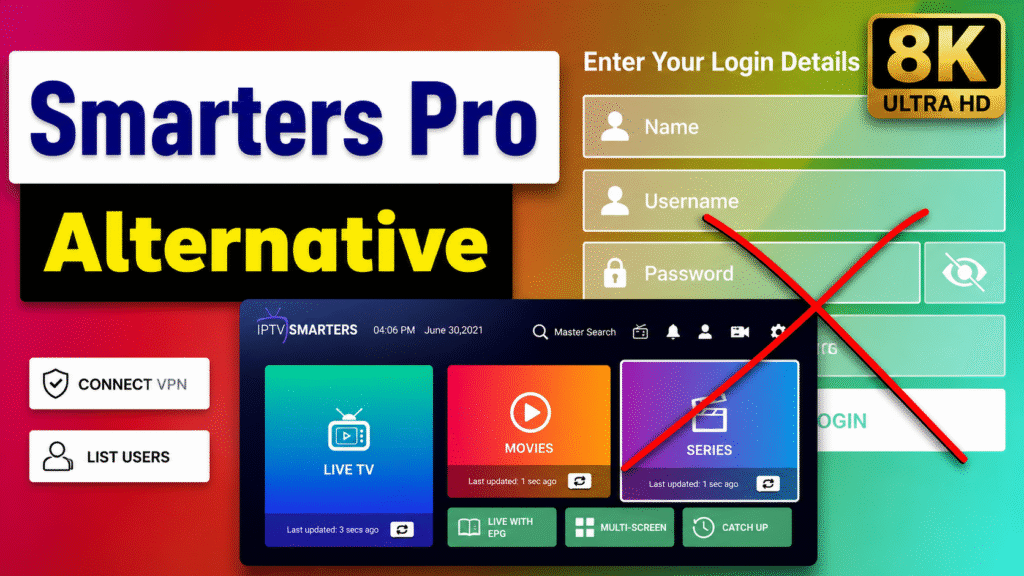
Trying to pick between two of the most popular IPTV players and not sure which one actually fits your setup? You’re not alone. Both apps look similar on the surface, but they work differently once you get into playlist formats, EPG handling, and device support.
This guide breaks down IPTV Smarters Pro vs Smart IPTV in plain terms — what each app does, how to install and configure them, how to add a playlist, and how to fix the most common setup problems. By the end, you’ll know which player fits your device and viewing habits.
What Is IPTV Smarters Pro vs Smart IPTV?
IPTV Smarters Pro is a media player app that supports both M3U playlists and Xtream Codes API logins. It includes a built-in interface for browsing live TV, movies, and series, along with EPG support, multi-profile management, and parental controls.
Smart IPTV (SITV) is a simpler player designed primarily for Samsung and LG Smart TVs. It typically works by registering your device’s MAC address on the SITV website and loading an M3U playlist tied to that MAC address.
Neither app is a channel provider. They are players — tools that display content from a playlist or service you already have. Without an active IPTV subscription or M3U/Xtream Codes credentials, both apps will show an empty interface.
Smarters Pro Features
- Supports M3U URL and Xtream Codes API
- Multi-screen and multi-profile support
- Built-in EPG (when provided by your playlist)
- Available on Android, iOS, Windows, macOS, Fire TV, and Android TV
Smart IPTV Features
- MAC address-based playlist loading
- Lightweight interface built for Samsung and LG Smart TVs
- Basic EPG support
- Free to test, with a one-time activation fee for extended use on some platforms
What You Need Before Getting Started
Before installing either app, make sure you have the following ready:
- A compatible device (Smart TV, Fire TV Stick, Android TV, Google TV, smartphone, tablet, Windows, or macOS)
- A stable internet connection, ideally 15+ Mbps for HD streaming
- An active IPTV playlist or subscription (M3U URL or Xtream Codes login)
- The latest version of the app installed from an official source
- For Smart IPTV: your TV’s MAC address, found in the app itself
IPTV Smarters Pro vs Smart IPTV Installation
Step 1: Find the Application
On Fire TV Stick, Android TV, or Google TV, search for “IPTV Smarters Pro” in the app store. On Samsung and LG Smart TVs, Smart IPTV is usually found through the respective TV’s app store (Samsung Apps or LG Content Store). On Android smartphones and tablets, both apps are available through the Google Play Store. Windows and macOS users can download Smarters Pro directly from the official website.
Step 2: Install the Application
Select the app and choose install or get. On Fire TV, you may need to confirm the download using the remote. On Windows or macOS, run the downloaded installer and follow the on-screen prompts.
Step 3: Open the Application
Once installed, launch the app from your home screen or app drawer. Smart IPTV will typically display a MAC address and a prompt to register it on the SITV website before continuing.
Step 4: Complete the Initial Setup
For Smarters Pro, you’ll be asked to choose a login method (M3U URL or Xtream Codes). For Smart IPTV, registration usually needs to happen once through their website using your device’s MAC address before the app will accept a playlist.
IPTV Smarters Pro vs Smart IPTV Setup and Configuration
Once logged in, both apps offer configuration options worth reviewing:
- Player settings: Choose between the built-in player or an external player if available
- EPG: If your playlist includes an EPG URL, enter it in the settings menu for program guide data
- Subtitles and audio tracks: Adjustable within playback settings on Smarters Pro
- Parental controls: Available in Smarters Pro for restricting certain categories
- Favorites: Both apps allow marking channels as favorites for quicker access
- Buffering settings: Smarters Pro allows adjusting buffer size, which can help on slower connections
How to Add an IPTV Playlist
The playlist method depends on which app you’re using.
Adding a Playlist in IPTV Smarters Pro
Smarters Pro supports two login types:
- M3U URL: Select “Login with M3U URL,” give the playlist a name, and paste your M3U URL: YOUR_M3U_URL
- Xtream Codes API: Select “Login with Xtream Codes API” and enter your Server URL (YOUR_SERVER_URL), Username (YOUR_USERNAME), and Password (YOUR_PASSWORD)
Adding a Playlist in Smart IPTV
Smart IPTV uses MAC address-based authentication instead of manual login fields. After registering your MAC address on the SITV website, you upload or link your M3U playlist through their portal. The playlist is then tied to your specific TV and loads automatically the next time you open the app.
How to Activate IPTV Smarters Pro vs Smart IPTV
IPTV Smarters Pro does not require a separate activation step beyond entering valid playlist credentials. Once your M3U URL or Xtream Codes details are correct, the app should load content immediately.
Smart IPTV, on the other hand, often requires a one-time activation fee after a short free trial period, paid through their official website using your device’s MAC address. This activation is separate from your IPTV subscription and only applies to using the SITV app itself.
How to Test Your IPTV Playlist
After logging in, check the following:
- Do channel categories appear on the home screen?
- Does playback start within a few seconds of selecting a channel?
- Is audio synced with video?
- Does the EPG display program times and titles?
- Are favorites saving correctly between sessions?
If channels don’t load at all, double-check your M3U URL or Xtream Codes credentials for typos, extra spaces, or expired subscription status before assuming the app itself is broken.
Common Problems and Fixes
Playlist Not Loading
This is usually caused by an incorrect M3U URL, expired credentials, or a typo in the server address. Re-copy the URL carefully and confirm your subscription is still active.
IPTV Channels Buffering
Buffering can come from several sources: unstable internet, weak Wi-Fi signal, an overloaded device, or temporary server congestion. Try switching to a 5 GHz Wi-Fi band or a wired connection before assuming the provider is at fault.
EPG Not Showing
Confirm that your playlist actually includes an EPG URL, and that it’s entered correctly in the app’s settings. Not all playlists include program guide data.
Application Crashing
Update the app to the latest version, clear the app cache, and restart the device. On older Smart TVs, limited memory can also cause instability.
Login or Activation Not Working
Verify your username, password, and server URL for extra spaces or incorrect characters. On Smart IPTV, confirm your MAC address registration hasn’t expired and that your device is on the correct app version.
Best Devices for IPTV Smarters Pro vs Smart IPTV
IPTV Smarters Pro works across a wide range of devices, including Fire TV Stick, Android TV, Google TV, Android smartphones and tablets, Windows, and macOS. This makes it a flexible choice if you switch between devices often.
Smart IPTV is built specifically for Samsung and LG Smart TVs and performs best on those platforms. It’s not designed as a cross-platform solution the way Smarters Pro is.
PureStream4K Recommendation
Once the player is installed, you will need a compatible IPTV playlist or service subscription to load content. PureStream4K is one option users can consider when looking for an IPTV service to use with compatible players like IPTV player comparison tools such as Smarters Pro and Smart IPTV.
PureStream4K can provide the M3U or Xtream Codes login details needed to test playback on your chosen app.
Common Mistakes to Avoid
- Confusing M3U login with Xtream Codes API login
- Typing credentials with extra spaces or incorrect capitalization
- Installing modified or unofficial versions of these apps
- Assuming the player itself provides live channels
- Skipping app updates, which can cause playback or login issues
- Registering the wrong MAC address on the Smart IPTV website
- Using an outdated app version incompatible with newer playlists
Tips for Better Streaming Performance
- Use a wired Ethernet connection when possible instead of Wi-Fi
- Connect to 5 GHz Wi-Fi rather than 2.4 GHz for better speed
- Position your router closer to the streaming device
- Close background apps that may be using bandwidth
- Restart your router periodically to clear connection issues
- Test a different network if buffering persists to isolate the cause
These steps can improve performance, but they won’t guarantee completely buffer-free playback, since streaming quality also depends on your internet provider and network conditions.
Frequently Asked Questions
How do I install IPTV Smarters Pro vs Smart IPTV?
Smarters Pro is available through app stores on most devices, while Smart IPTV is typically installed through Samsung or LG’s respective TV app stores.
How do I activate IPTV Smarters Pro vs Smart IPTV?
Smarters Pro doesn’t require separate activation beyond entering valid playlist credentials. Smart IPTV usually requires a one-time activation fee tied to your device’s MAC address.
How do I add an M3U playlist?
In Smarters Pro, choose “Login with M3U URL” and paste your playlist link. In Smart IPTV, your M3U playlist is linked through the SITV website after MAC address registration.
Does IPTV Smarters Pro support Xtream Codes?
Yes, Smarters Pro supports Xtream Codes API login using a server URL, username, and password.
Why is my IPTV playlist not loading?
This is often caused by incorrect credentials, an expired subscription, or a typo in the M3U URL or server address.
Why are IPTV channels buffering?
Buffering can result from weak Wi-Fi, unstable internet, an overloaded device, or temporary server-side congestion.
Does Smart IPTV work on Fire TV Stick?
Smart IPTV is designed primarily for Samsung and LG Smart TVs and is not typically used on Fire TV Stick. Smarters Pro is a better fit for Fire TV.
Do I need an IPTV subscription to use these players?
Yes. Both apps are players only — they require a separate IPTV playlist or service subscription to display any content.
Conclusion
Choosing between IPTV Smarters Pro and Smart IPTV really comes down to your device and how much flexibility you need. Smarters Pro offers broader device support and more login options, while Smart IPTV is a solid, straightforward choice if you’re specifically using a Samsung or LG Smart TV.
Remember that the player and the content are two separate things — you’ll always need a working playlist or subscription to actually watch anything. Once you’ve picked your app, follow the setup steps above, test your playlist thoroughly, and check out related tutorials to fine-tune your streaming setup.