
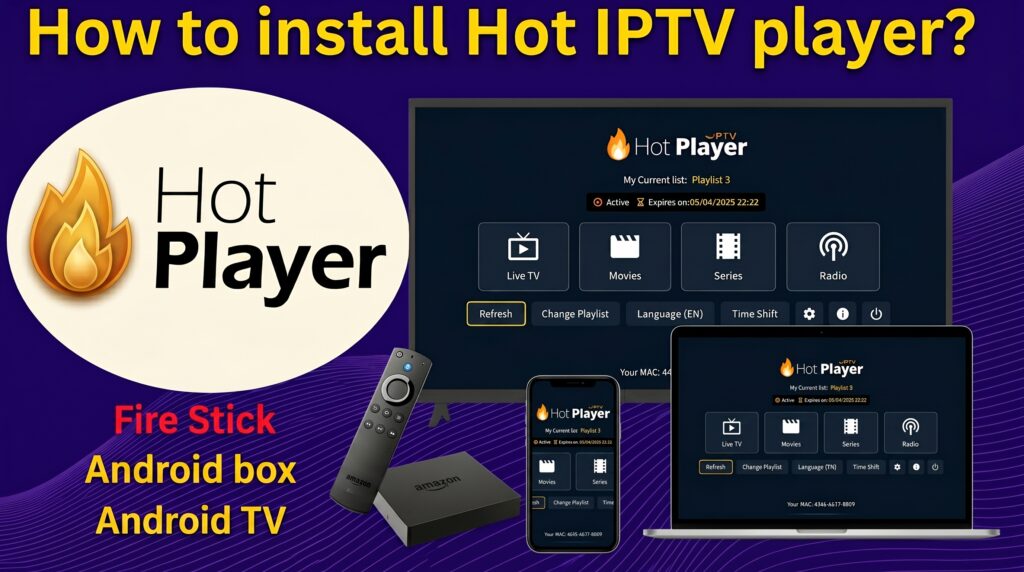
Stuck on a blank screen after installing an IPTV app and not sure what to do next? You’re not alone. Many users download a player, open it, and then have no idea how to actually get channels playing.
This guide walks you through everything you need to know about Hot Player IPTV, including installation on multiple devices, playlist configuration, activation, and troubleshooting. By the end, you’ll know exactly how to get your player working with a compatible IPTV playlist.
What Is Hot Player IPTV?
Hot Player IPTV is a media player application designed to play IPTV playlists and streams on supported devices. Like most IPTV players, it acts as the interface between your playlist and your screen.
It’s important to understand the distinction here:
- The player (application) – software that plays video streams and organizes channels, EPG, and categories.
- The playlist – the actual list of channels, usually delivered via an M3U URL or Xtream Codes credentials.
- The IPTV service/provider – the company or source that generates and maintains the playlist content.
Hot Player IPTV does not include built-in channels. You’ll need a separate playlist or subscription to load any content into the app.
What You Need Before Getting Started
Before installing the app, make sure you have the following ready:
- A supported device (Smart TV, Firestick, Android TV, phone, or computer)
- A stable internet connection, preferably at least 15–25 Mbps for HD streaming
- A valid IPTV playlist (M3U URL or Xtream Codes login details)
- The latest version of the Hot Player IPTV app
- Basic remote or keyboard navigation skills for your device
Hot Player IPTV Installation
Step 1: Find the Application
Search for the app in your device’s official store. On Android TV, Google TV, and Android devices, this is usually the Google Play Store. On Fire TV Stick, use the Amazon App Store search function.
Step 2: Install the Application
Select the app from the search results and choose the install or get option. Wait for the download to complete before opening it.
Step 3: Open the Application
Once installed, open the app from your home screen or apps menu. You may see a short loading screen the first time.
Step 4: Complete the Initial Setup
The app will typically prompt you to add a playlist or login method. Keep your M3U URL or Xtream Codes details on hand at this stage.
Installing on Smart TVs
On Samsung and LG Smart TVs, check the respective app store (Samsung Smart Hub or LG Content Store) for availability. If the app isn’t listed, some users install compatible IPTV apps through sideloading methods, though this varies by TV model and firmware.
Installing on Windows and macOS
Desktop compatibility depends on whether an official version exists for your operating system. If unavailable, some users run Android emulators to access mobile IPTV apps on a computer.
Hot Player IPTV Setup and Configuration
After installation, take a few minutes to configure the app for smoother playback:
- Language settings – select your preferred interface language if available.
- Player settings – some apps let you choose between different video rendering engines.
- Buffering settings – increasing buffer size can help on slower connections.
- EPG (Electronic Program Guide) – if supported, you may need to add an EPG URL separately from your playlist.
- Subtitles and audio tracks – adjust default language preferences if multiple tracks are available.
- Favorites – mark frequently watched channels for quicker access.
Not every version of the app includes all these options, so check your specific settings menu.
How to Add an IPTV Playlist
Most IPTV players support one or both of these methods:
Adding an M3U URL
- Open the app and locate the “Add Playlist” or “Add User” option.
- Choose the M3U URL or remote playlist option.
- Enter a name for the playlist (any label works).
- Paste your M3U URL: YOUR_M3U_URL
- Save and allow the app to load the channel list.
Adding Xtream Codes Login
- Select the Xtream Codes or “API” login option, if available.
- Enter the server/host address: YOUR_SERVER_URL
- Enter your username: YOUR_USERNAME
- Enter your password: YOUR_PASSWORD
- Confirm and let the app sync your channel list.
Never share or reuse credentials from unofficial sources. Only use details provided directly by your IPTV service.
How to Activate Hot Player IPTV
Some IPTV player apps require activation through a code, device ID, or account login, while others work immediately after a playlist is added. If your version prompts for activation, follow the on-screen instructions provided within the app itself.
If no activation screen appears, activation may simply not be required for that version, and you can proceed directly to adding your playlist.
How to Test Your IPTV Playlist
Once your playlist is loaded, check the following:
- Do channel categories appear correctly?
- Does a channel start playing when selected?
- Is audio synced with video?
- Is video quality acceptable for your connection speed?
- Does the EPG display program information, if enabled?
- Are favorites saving properly?
If channels don’t load, double-check your playlist URL or login details for typos, and confirm your internet connection is active.
Common Problems and Fixes
Playlist Not Loading
Usually caused by an incorrect M3U URL, expired playlist, or temporary server downtime. Re-enter the URL carefully and try again.
IPTV Channels Buffering
Buffering can result from unstable Wi-Fi, poor router placement, device processing limits, network congestion, or server-side load. It isn’t automatically the provider’s fault — check your own network first.
EPG Not Showing
Confirm that an EPG URL has been added separately, as some playlists don’t include EPG data automatically.
Application Crashing
Try clearing the app cache, restarting the device, or reinstalling the latest version of the app.
Login or Activation Not Working
Verify your credentials, server URL, and activation status. Also confirm your device meets compatibility requirements and that you’re using an updated app version.
Best Devices for Hot Player IPTV
Depending on availability, Hot Player IPTV can work across:
- Samsung Smart TV
- LG Smart TV
- Fire TV Stick
- Android TV and Google TV devices
- Android smartphones and tablets
- Windows and macOS (via compatible methods)
Performance and available features may vary depending on the device’s hardware and the app version installed.
PureStream4K Recommendation
Once the player is installed, you will need a compatible IPTV playlist or service subscription to load content. PureStream4K is one option users can consider when looking for an IPTV service to use with compatible players. You can review their offering at PureStream4K.
Common Mistakes to Avoid
- Entering incorrect or mistyped credentials
- Confusing M3U links with Xtream Codes login fields
- Adding extra spaces before or after usernames and passwords
- Installing modified or unofficial app versions
- Ignoring available app updates
- Assuming the player itself provides live channels
- Using unstable or overloaded Wi-Fi networks
- Sticking with an outdated app version after known bugs
Tips for Better Streaming Performance
- Use an Ethernet connection when possible for more stability
- Connect to 5GHz Wi-Fi if your router supports it
- Place your router closer to the streaming device
- Close background apps that use bandwidth or memory
- Restart your router periodically
- Keep the app updated to the latest version
- Test a different network if buffering persists to isolate the cause
These steps can improve playback consistency but won’t guarantee completely buffer-free streaming, since performance depends on multiple factors outside the app itself.
Frequently Asked Questions
How do I install Hot Player IPTV?
Search for it in your device’s app store, install it, and open the app to begin setup.
How do I activate Hot Player IPTV?
Follow any on-screen activation prompts if present. If none appear, activation may not be required for your version.
How do I add an M3U playlist?
Open the “Add Playlist” option, select M3U URL, and paste your playlist link.
Does Hot Player IPTV support Xtream Codes?
Many IPTV players support Xtream Codes login using server URL, username, and password fields, if this option is available in your version.
Why is my IPTV playlist not loading?
Check for typing errors in your URL, confirm your playlist is still active, and verify your internet connection.
Why are IPTV channels buffering?
Buffering is often linked to Wi-Fi signal strength, network congestion, or device performance rather than the app itself.
Does Hot Player IPTV work on Smart TV?
Compatibility depends on your TV brand and available app store. Check Samsung or LG’s app store for availability.
Do I need an IPTV subscription to use the player?
Yes. The player alone doesn’t include channels — you need a separate playlist or IPTV service to stream content.
Conclusion
Setting up Hot Player IPTV involves installing the app, configuring basic settings, and adding a valid playlist through M3U or Xtream Codes. Remember that the player and the content source are separate — the app plays streams, but you’ll need a working playlist to see any channels.
Take a few minutes to test your setup, adjust buffering or EPG settings as needed, and troubleshoot using the steps above if something doesn’t load correctly. For more setup walkthroughs and configuration tips, check out the Hot Player IPTV setup tutorials available on our channel.